
All in One View
Content from Using RMarkdown
Last updated on 2026-10-21 | Edit this page
Overview
Questions
- How do you write a lesson using R Markdown and sandpaper?
Objectives
- Explain how to use markdown with the new lesson template
- Demonstrate how to include pieces of code, figures, and nested challenge blocks
Introduction
This is a lesson created via The Carpentries Workbench. It is written in Pandoc-flavored Markdown for static files and R Markdown for dynamic files that can render code into output. Please refer to the Introduction to The Carpentries Workbench for full documentation.
What you need to know is that there are three sections required for a valid Carpentries lesson template:
-
questionsare displayed at the beginning of the episode to prime the learner for the content. -
objectivesare the learning objectives for an episode displayed with the questions. -
keypointsare displayed at the end of the episode to reinforce the objectives.
Challenge 1: Can you do it?
What is the output of this command?
R
paste("This", "new", "lesson", "looks", "good")
OUTPUT
[1] "This new lesson looks good"Challenge 2: how do you nest solutions within challenge blocks?
You can add a line with at least three colons and a
solution tag.
Figures
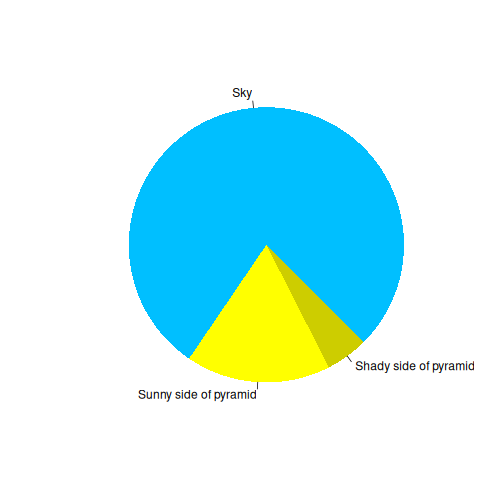
You can also include figures generated from R Markdown:
R
pie(
  c(Sky = 78, "Sunny side of pyramid" = 17, "Shady side of pyramid" = 5),
  init.angle = 315,
  col = c("deepskyblue", "yellow", "yellow3"),
  border = FALSE
)
Or you can use standard markdown for static figures with the following syntax:
{alt='alt text for accessibility purposes'}

Callout sections can highlight information.
They are sometimes used to emphasise particularly important points but are also used in some lessons to present “asides”: content that is not central to the narrative of the lesson, e.g. by providing the answer to a commonly-asked question.
Math
One of our episodes contains \(\LaTeX\) equations when describing how to create dynamic reports with {knitr}, so we now use mathjax to describe this:
$\alpha = \dfrac{1}{(1 - \beta)^2}$ becomes: \(\alpha = \dfrac{1}{(1 - \beta)^2}\)
Cool, right?
- Use
.mdfiles for episodes when you want static content - Use
.Rmdfiles for episodes when you need to generate output - Run
sandpaper::check_lesson()to identify any issues with your lesson - Run
sandpaper::build_lesson()to preview your lesson locally
Content from Environments
Last updated on 2026-10-21 | Edit this page
Overview
Questions
- What is a project environment and why does it matter?
- How can we create a project environment?
Objectives
- Explain the purpose of an project environment.
- Create a project environment using
renv. - Use use
renv::snapshot()to take implicit and explicit snapshots of the environment. - Restore an environment using a lockfile or using a
DESCRIPTIONfile.
Running someone else’s script
A colleague emails you an R script called
sleep_analysis.R and asks you to reproduce their results
while they are away.
Before running anything, create an R project to organise your work.
Create an R project
Before working with the script, create an R project in RStudio:
- Go to File > New Project > New Directory > New Project
- Name the directory
rworkshop - Create as a subdirectory of your home directory (for example:
C:/Users/username/) - Click Create Project
If you want to come back to your work later, open the R Project file
you created (rworkshop.Rproj). Double‑clicking this file
launches RStudio, sets the working directory, and restores your project
as you left it.
Save the script
Create a new R script called sleep_analysis.R inside the
rworkshop folder and save the file after pasting in the
code your colleague sent you:
R
library(obscurepackage)
library(ggplot2)

data <- sleep
none_transformed_data <- none_transform(data$extra)

p <- ggplot(data, aes(x = group, y = none_transformed_data)) +
  geom_boxplot() +
  labs(
    title = "Extra Sleep by Drug Group",
    x = "Drug Group",
    y = "Extra sleep (hours)"
  )

print(p)
Run the script
Run sleep_analysis.R to see what happens.
In RStudio, you can run the script using your editor’s Source button.
You will probably hit an error resulting in a message that looks like the one below.
The script tries to load:
R
library(obscurepackage)
On your machine, R looks for packages in its configured R libraries.
You might already have ggplot2 installed, but you probably
do not have obscurepackage installed, so the script
fails.
Install the required packages
You may already have ggplot2 installed, but if not, you
can install it with:
R
install.packages("ggplot2")
The obscurepackage is not on CRAN.
First, install the remotes package, which allows you to install packages from GitHub:
R
install.packages("remotes")
Then, install obscurepackage:
R
remotes::install_github("stellaprins/obscurepackage")
Reproduce the results
Now that you have installed the required packages, are you able to reproduce the plot below?
If not, what happens, and why do you think the results differ?
Hint: visit the obscurepackage
GitHub repository and explore its commit history. Have any changes
been made that could explain the difference?
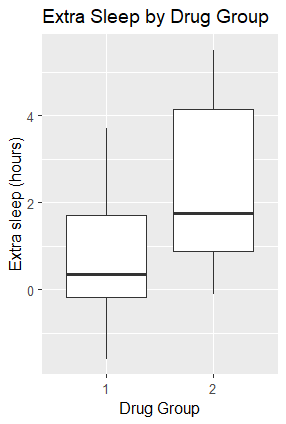
You will not be able to reproduce your colleague’s original plot
using the latest version of obscurepackage.
Instead, you should see something like this:
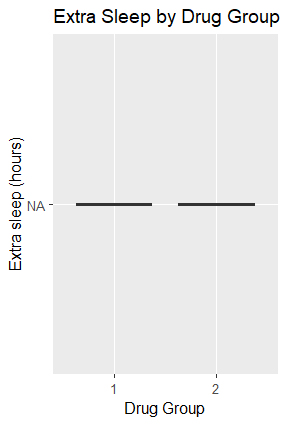
The difference is caused by a bug introduced in a newer version of
obscurepackage.
The none_transform() function was originally designed to
return its input unchanged:
R
none_transform <- function(x) {
  return(x)
}
However, a bug introduced in the newer version causes the function to
always return NA, regardless of its input:
R
none_transform <- function(x) {
  return(NA)
}
As a result, the analysis produces missing values instead of the expected data, preventing the original boxplot from being reproduced.
To reproduce your colleague’s results, you would need to install an
earlier version of obscurepackage that does not contain the
bug.
Changes to software dependencies can affect reproducibility, even when the code and data remain unchanged. This highlights the importance of recording and managing package versions.
Project environments
Different versions of an R package can behave differently.
This can be due to new features, altered defaults, or bugs, and causes the same code to produce different results.
A version mismatch happens when your script relies on a package whose behaviour has changed between releases.
A project environment helps prevent this by isolating the packages your project uses and recording their versions.
This keeps your work separate from whatever happens to be installed globally on your system and avoids conflicts between R projects that require different or incompatible dependencies.
Recording package versions in a project environment also helps you rebuild the setup, for example when someone else needs to run your analysis or you return to the project in the future.
Two different meanings of environment in R
1) project environments
These are project‑specific libraries created by the renv
package. They store packages and their versions, helping you reproduce
your project on other machines.
2) R environments
These store variables and track where functions were created, and
control how R finds values. They enable features like lexical scoping
and namespaces.
In this workshop, we are going to use an R package called
renv to manage our project environment.
To install renv:
R
install.packages("renv")
Find out more about renv
Open the renv help page in the R console:
R
?renv
Explore the help page and useful links.
In your own words, explain:
- What does
renvdo? - How can
renvhelp when handing the project over to a colleague?
renv is an R package that helps create reproducible
environments.
renv gives every R project its own library of packages,
separate from everything else on your computer, and records the package
versions the project uses.
When you hand a project to someone else, renv can
restore the package versions recorded in renv.lock.
This helps them recreate your project environment and run the analysis using the same package versions.
Differences in R versions, operating systems, or system libraries can still affect the results.
Initialise renv:
R
renv::init()
This will:
- Set up project infrastructure inside your working directory that
ensures
renvwill be used in future sessions - Discover packages used in your project and add them and their dependencies to the project library
- Create a “lockfile” named
renv.lockthat records the versions of your project’s package dependencies - Restart R if you are using RStudio.
Install packages in the project environment
Before using renv, we installed packages using
install.packages(). Packages are installed into an R
library, which may be shared by several projects. When renv
is active, install.packages() normally uses the project
library.
This installs ggplot2 only into the project’s
renv library, leaving the global library untouched:
R
renv::install("ggplot2")
Install a GitHub package
Use the help page for renv::install to learn how to
install packages inside the renv environment.
R
?renv::install
- Use the help page to find out how to install a package from GitHub
using
renv::install() - Use what you learned to install
v0.1.0of the GitHub repositorystellaprins/obscurepackage.
Hint: Explore the repository’s commit history to
find the commit corresponding to v0.1.0, and check how to
specify a commit hash when using renv::install().
From the help page, GitHub packages can be installed by using the
username/repository string, and specific versions can be
installed by supplying a commit SHA.
The commit SHA for v0.1.0 of
stellaprins/obscurepackage is 9e7cfcba9bfbfd1cbea4dbc1600f8d5283c71831.
R
renv::install("stellaprins/obscurepackage@9e7cfcba9bfbfd1cbea4dbc1600f8d5283c71831")
To install a specific version of a GitHub package inside a
renv project, use the username/repo@version
format:
R
renv::install("stellaprins/obscurepackage@v0.1.0")
Restart your R session to make sure R uses the newly installed
version of obscurepackage.
In RStudio, select Session → Restart R, or run:
R
.rs.restartR()
Note: .rs.restartR() only works in
RStudio, not in a standard R terminal or other R editors.
Then run sleep_analysis.R again.
You should be able to replicate the results of your colleague!
Recording your environment with a lockfile
You have now reproduced your colleague’s results by installing a
specific version of obscurepackage.
But how can you make sure that you, or someone else, can reproduce these results again in the future?
This is where a lockfile comes in.
When you initialise renv, it creates a file called
renv.lock.
This file records information about your project’s software dependencies, including:
- The R version used by the project
- The packages required by the project
- The exact versions of those packages
- Where the packages were installed from, such as CRAN or GitHub
Now that you have installed a different version of
obscurepackage, your project environment has changed.
These changes are not automatically recorded in your
renv.lock file.
To check whether your project environment is consistent with your lockfile, use:
R
renv::status()
renv::status() compares three things:
-
renvproject library - the
renv.lockfile - What your project actually uses
If these differ, renv::status() will report
inconsistencies such as:
- packages installed but not recorded
- packages recorded but not installed
- packages where the installed version ≠ recorded version
Once you have reviewed these differences, you can use
renv::snapshot() to update the lockfile and record the
current state of your project environment.
Update your lockfile using a snapshot
Run:
R
renv::status()
Look at the output.
Now take a snapshot using renv::snapshot():
R
renv::snapshot()
Then, run renv::status() again:
R
renv::status()
Compare the renv::status outputs before and after taking
a snapshot:
- Which inconsistencies disappeared?
- Which (if any) remain?
- Why did snapshotting fix these issues?
After taking the snapshot, renv::status() may
report:
renv::snapshot() updates the lockfile to record the
installed versions of your project’s dependencies and the R version.
This can resolve inconsistencies between the lockfile and the project
library. However, it does not install missing packages. Some issues may
still require renv::install() or
renv::restore().
Use renv::snapshot() to record your project’s current
package dependencies and their versions in the lockfile.
R
renv::snapshot()
Restoring an environment from a lockfile
While renv::snapshot() records your current environment,
renv::restore() recreates the environment described by the
lockfile.
| Command | Purpose |
|---|---|
renv::status() |
Check whether the project environment and lockfile are consistent |
renv::snapshot() |
Record the current environment in the lockfile |
renv::restore() |
Recreate the environment described by the lockfile |
Use renv::restore() when:
- You open a project on a new computer
- You clone someone else’s project from GitHub
- You want to return to a known working state
DESCRIPTION files
You receive an email from your colleague. Apparently the earlier file
(sleep_analysis.R) was the wrong one.
This time, your colleague sent you two files:
sleep_analysis.R and DESCRIPTION.
In their message, your colleague explains that you should use the
DESCRIPTION file to create the correct R environment for
running the analysis.
Download the DESCRIPTION
file and save it in your rworkshop folder.
Next, create a new R script called
sleep_analysis_final.R in the same folder. Copy the
following code into it and save the file.
Keep your original sleep_analysis.R file. We will
compare the dependencies detected in both scripts later.
R
library(dplyr)
library(ggplot2)
library(broom)

data <- sleep

# Compute group means for bar plot
summary_tbl <- data |>
  group_by(group) |>
  summarise(
    mean_extra = mean(extra),
    sd_extra   = sd(extra),
    n          = n(),
    se_extra   = sd_extra / sqrt(n)
  )

# Compute prolongation (drug - placebo) per subject
sleep1 <- data |>
  group_by(ID) |>
  summarise(
    prolongation = extra[group == 2] - extra[group == 1]
  )

# Paired t-test
tt <- t.test(sleep1$prolongation, mu = 0)
tt_tidy <- tidy(tt)

p_value <- signif(tt_tidy$p.value, 3)
t_stat  <- signif(tt_tidy$statistic, 3)

# Bar plot with t-test annotation
ggplot(summary_tbl, aes(x = factor(group), y = mean_extra)) +
  geom_col(fill = "steelblue", alpha = 0.8, width = 0.6) +
  geom_errorbar(aes(ymin = mean_extra - se_extra,
                    ymax = mean_extra + se_extra),
                width = 0.2, linewidth = 0.8) +
  labs(
    title = "Extra Sleep by Drug",
    x = "Drug",
    y = "Extra Sleep (hours)"
  ) +
  annotate(
    "text",
    x = 1.5,
    y = max(summary_tbl$mean_extra) + 1,
    label = paste0("t = ", t_stat, "\n",
                   "p = ", p_value),
    size = 5,
    hjust = 0.5
  ) +
  theme_minimal(base_size = 14)
Your project folder should now contain these files:
rworkshop/
├── rworkshop.Rproj
├── sleep_analysis.R
├── sleep_analysis_final.R
└── DESCRIPTIONLearn more about DESCRIPTION
files
Open the DESCRIPTION file in RStudio. What information
does the file contain?
The DESCRIPTION file contains information about the
project, including its name, version, a short description, and the
packages it depends on.
R
Package: sleepanalysis
Title: Sleep Analysis
Version: 0.1.0
Description: Dependencies for the sleep analysis.
Imports:
    dplyr (>= 1.1.0),
    tidyr (>= 1.3.0),
    ggplot2 (>= 3.4.0),
    broom (>= 0.8.0)
The Imports field lists the packages required by the
project and their minimum versions.
The >= operator means greater than or equal to, so
the specified version or any newer version can be installed.
For example, dplyr (>= 1.1.0) means that version 1.1.0 or any newer version can be used.
A DESCRIPTION file is normally used in R packages to
record information such as the package name, version, authors, and
dependencies.
It can also be used in an R analysis project to document the packages
required to run the project. In this case, a minimal
DESCRIPTION file containing only an Imports
field is sufficient to declare the project’s dependencies for use with
renv.
Why specify minimum package versions?
In DESCRIPTION files, it is common to use
>= to specify the minimum required version of each
package. This means that the specified version or any newer version can
be installed.
Discuss the following questions: 1. What are the benefits of allowing newer package versions? 2. What potential pitfalls could this introduce?
Think back to your earlier experience with
obscurepackage.
Specifying minimum versions provides flexibility, allowing projects to benefit from bug fixes, security updates, and new features without constantly updating dependency requirements.
However, newer versions can also introduce breaking changes, alter
default behaviour, or contain bugs, as you saw with
obscurepackage.
Therefore, specifying minimum versions alone does not guarantee reproducibility.
While DESCRIPTION defines the project’s dependency
requirements, renv.lock records the exact package versions
used in a particular environment.
Reset the environment
You will now create a fresh project environment to explore how
renv works with a DESCRIPTION file.
First, make sure your rworkshop project is open in
RStudio. Restart R by selecting Session > Restart R
to unload any packages from your previous session.
Before resetting the environment, remove the packages installed during the previous exercise:
R
renv::remove(c("ggplot2", "obscurepackage"))
Then deactivate renv and remove the existing project
environment:
R
renv::deactivate(clean = TRUE)
This removes the project’s renv infrastructure,
including its project library and lockfile, without affecting your R
scripts or DESCRIPTION file.
After R restarts, initialise a new environment:
R
renv::init(bare = TRUE)
Setting bare = TRUE creates an empty project environment
without automatically discovering and installing the packages used in
your project.
Because your project contains a DESCRIPTION file,
renv will ask how it should identify the project’s
dependencies:
This project contains a DESCRIPTION file.
Which files should renv use for dependency discovery in this project?

1: Use only the DESCRIPTION file. (explicit mode)
2: Use all files in this project. (implicit mode)
These options represent two approaches to managing project dependencies:
-
Explicit mode: Uses the dependencies declared in
DESCRIPTIONwhen creating a lockfile. - Implicit mode: Discovers dependencies by scanning project files, such as R scripts, when creating a lockfile.
Select option 1 (explicit mode) because your
colleague has provided a DESCRIPTION file declaring the
project’s required packages.
This setting controls which dependencies renv records
when taking a “snapshot”. It does not automatically install the
packages.
Your new project environment is now active, but the packages required for the analysis have not yet been installed.
Try running sleep_analysis_final.R.
Does it work? What error message do you get?
The script should fail because the required packages are not yet available in the project library.
In the next steps, you will identify and install these dependencies.
Find dependencies in a project
Before installing anything, it is useful to check which dependencies
renv detects.
renv::dependencies() scans your project files and
reports every package it finds, along with where each one came from.
R
renv::dependencies()
renv::dependencies()
Run renv::dependencies():
R
renv::dependencies()
Examine at the Package, Source, and
Type columns.
- Which packages does
renvdetect? - Which files are these packages found in?
- Are all the detected packages listed in
DESCRIPTION?
Your output may look similar to this (file paths will vary):
Finding R package dependencies ... Done!


     Type                                             Source        Package Require Version   Dev
1 Imports           C:/Users/username/rworkshop/DESCRIPTION          dplyr      >=   1.1.0 FALSE
2 Imports           C:/Users/username/rworkshop/DESCRIPTION          tidyr      >=   1.3.0 FALSE
3 Imports           C:/Users/username/rworkshop/DESCRIPTION        ggplot2      >=   3.4.0 FALSE
4 Imports           C:/Users/username/rworkshop/DESCRIPTION          broom      >=   0.8.0 FALSE
5    <NA>      C:/Users/username/rworkshop/sleep_analysis.R        ggplot2                 FALSE
6    <NA>      C:/Users/username/rworkshop/sleep_analysis.R obscurepackage                 FALSE
7    <NA> C:/Users/username/rworkshop/sleep_analysis_final.R          broom                 FALSE
8    <NA> C:/Users/username/rworkshop/sleep_analysis_final.R          dplyr                 FALSE
9    <NA> C:/Users/username/rworkshop/sleep_analysis_final.R        ggplot2                 FALSE
Which packages does renv detect?
renv detects five different packages:
dplyr, tidyr, ggplot2,
broom, and obscurepackage.
Some packages appear more than once because they are found in multiple files.
Which files are these packages found in?
The Source column shows where each package was
found:
-
DESCRIPTIONlistsdplyr,tidyr,ggplot2, andbroom. -
sleep_analysis.Rusesggplot2andobscurepackage. -
sleep_analysis_final.Rusesdplyr,ggplot2, andbroom.
The Type column shows Imports for packages
declared in the Imports field of DESCRIPTION.
For packages detected in the R scripts, it shows
<NA>.
Are all the detected packages listed in
DESCRIPTION?
No. There are two differences:
-
obscurepackageis used insleep_analysis.Rbut is not listed inDESCRIPTION. -
tidyris listed inDESCRIPTIONbut is not used in either R script.
This shows that the packages declared in DESCRIPTION do
not always match those used in the project’s scripts.
Install dependencies from DESCRIPTION file
Even though we selected explicit mode earlier,
renv::dependencies() still scans both
DESCRIPTION and the R scripts. Explicit mode tells
renv to use the dependencies declared in
DESCRIPTION when creating the lockfile with
renv::snapshot().
To install the packages listed in DESCRIPTION, we can use the remotes package.
First, install remotes if you haven’t already:
R
install.packages("remotes")
Then run:
R
remotes::install_deps()
This installs the packages listed in the DESCRIPTION
file and their dependencies.
Run both analysis scripts
Now that you have installed the dependencies from
DESCRIPTION, try running both sleep_analysis.R
and sleep_analysis_final.R.
Do both scripts run successfully? Why (not)?
sleep_analysis_final.R should run successfully.
This script uses dplyr, ggplot2, and
broom, which are all listed in DESCRIPTION and
have now been installed.
sleep_analysis.R should fail.
The original script requires obscurepackage, which is
not listed in DESCRIPTION and therefore was not installed
by remotes::install_deps().
This shows that the DESCRIPTION does not necessarily
install every package used in the project’s R scripts and must be kept
up to date with the packages required by the project.
The sleep_analysis_final.R script should now run without
errors, because every required package is available inside the
renv project library.
The DESCRIPTION file usually specifies minimum required
versions, not exact pins.
This flexibility allows newer versions to be installed so your project can benefit from bug fixes, performance improvements, and security updates.
In contrast, the lockfile records the exact package versions used in a specific environment.
This means your colleague’s lockfile may differ from yours even if
you share the same DESCRIPTION file.
Choosing which dependencies to record
Earlier, you used renv::snapshot() to record your
project’s package versions in a lockfile.
But remember what you found when running
renv::dependencies()? Your original
sleep_analysis.R script uses obscurepackage,
even though it isn’t listed in DESCRIPTION or needed for
the final analysis.
When taking a snapshot, we can choose how renv
identifies which packages to record.
Snapshot types
Use the help system to find out what snapshot types are available and how they differ:
R
?renv::snapshot
- What is the default snapshot type when calling
renv::snapshot()? - How do implicit and explicit snapshots differ?
- Why is an explicit snapshot the better choice in this situation?
The default snapshot type is implicit.
- An implicit snapshot records installed packages
detected by
renv::dependencies()in project files and their dependencies. - An explicit snapshot records installed packages
declared in the
ImportsorDependsfields ofDESCRIPTIONand their dependencies.
Both approaches record the installed versions of the selected packages and their dependencies in the lockfile.
In our project, an implicit snapshot would identify
obscurepackage because it is used in the original
script.
An explicit snapshot instead uses the dependencies
declared in DESCRIPTION, including tidyr, even
though it is not used directly in either script.
Since our colleague has provided a DESCRIPTION file
listing the packages needed for the final analysis,
explicit snapshotting is the better choice here.
Earlier, you used renv::snapshot() without specifying a
snapshot type.
This time, use:
R
renv::snapshot(type = "explicit")
After taking the explicit snapshot, confirm that the project is now consistent.
R
renv::status()
You should see a message indicating that there are no issues.
You now have a lockfile for your new analysis, based on the
dependencies specified by your colleague in the DESCRIPTION
file they sent you.
- A project environment tracks the R and package versions used in a project.
-
renvcreates isolated, project‑specific libraries for reproducible workflows. - Reproducibility depends on stable, well‑defined environments.